
The online AI annotation tool T-Rex Label has officially rolled out its AI mask annotation feature. This update not only supports traditional manual mask annotation but also introduces a fully free automatic mask annotation capability, enabling users to complete annotation tasks with greater efficiency.
Experience link: https://www.trexlabel.com/?source=dds

Figure 1: T-Rex Label's Automatic Mask Annotation
Previously, T-Rex Label focused primarily on 2D bounding box (bbox) annotation, with the platform offering two core functionalities: interactive annotation and AI pre-annotation. These functions work as follows: (1) Interactive annotation encompasses both manual annotation and cross-image automatic annotation. Specifically, once a user selects one or more objects, the AI will automatically annotate all targets. After this initial selection, users do not need to reselect target objects — however, automatic annotation must be triggered by switching between images; (2) AI pre-annotation is a full-scale automatic annotation feature powered by the DINO-X vision model. Users only need to set the names of categories to be annotated in the first step; all subsequent tasks are handled entirely by the AI, which then outputs complete annotation results.

Figure 2: T-Rex Label AI Pre-annotation Page
T-Rex Label has set up two different charging models for its services: 1) The AI pre-annotation function is built with DINO-X and Grounding DINO 1.6 vision models, using Text Prompt. The entire automated process is charged based on the number of annotated images and the type of model used; 2) The interactive annotation function is built with T-Rex2 and related upgraded models, using Visual Prompt, and is currently fully free for the community. The mask annotation feature launched this time belongs to the interactive annotation service, available for users to use for free.
Mask Annotation Tutorial
After accessing the official T-Rex Label website (https://www.trexlabel.com/?source=mask), click "Get Started" to enter data import page:

Figure 3: T-Rex Label Homepage
Import the images or videos to be annotated according to the text guidance. If you only want to test its mask annotation feature, you can also click the test samples provided by the platform at the bottom left. It is worth noting that T-Rex Label is currently holding a reward-based survey activity. Click the questionnaire activity entry at the top right, fill in the corresponding product experience and improvement suggestions, and you can get a maximum of 200 CNY (~ 28 USD) in bonus (T-Beans) to experience the platform's advanced paid features.

Figure 4: T-Rex Label Data Import Page
Taking the sample images as an example here, click the "Agriculture" label at the bottom left, and the platform will automatically import the corresponding images. At this time, click the "Start Labeling" button that appears at the top right, and then two options—"Interactive Annotation" and "AI Pre-Annotation"—will appear. Just select "Interactive Annotation" to enter workspace.

Figure 5: Enter the Interactive Annotation Workspace
After entering the workspace, a window will pop up asking you to enter the category names to be annotated. T-Rex Label supports simultaneous annotation of multiple categories. Enter the category names as needed and click "Create".

Figure 6: Enter Category Names
After completing the category creation, you can select the required mask annotation tool in the left toolbar according to your needs:

Figure 7: Selecting Mask Annotation Tool You Need
Take the use of AI Mask as an example here. Click the tool icon, and then draw a box in the image to select a target:

Figure 8: Selecting the Object to Be Annotated
Then the platform will automatically annotate all targets in the current image, display the number of annotated objects, and wait for confirmation:

Figure 9: Annotating All Targets
After confirmation, if no adjustments are needed, you can move on to the next image. At this point, the platform will automatically annotate all targets in the new image, eliminating the need for any manual operations:
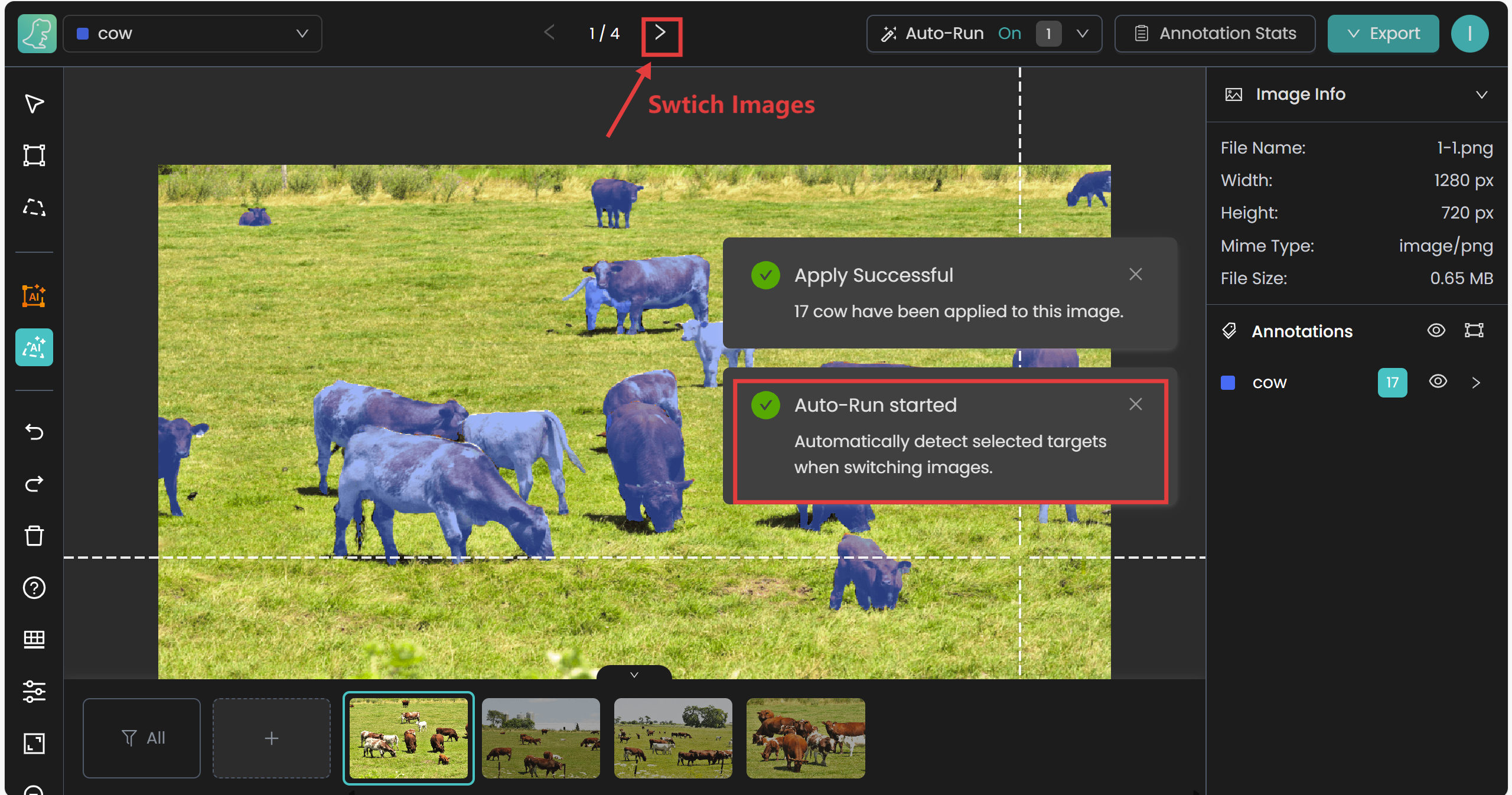
Figure 10: Automatic Annotation When Switching Images
If you think modifications are needed, you can click the "Mask" icon to call up the pen or brush tool to modify the annotation effect. Among them, the pen stroke is suitable for drawing points along the edge of the area to frame the entire region or make other detailed modifications; the positive and negative pens represent two effects: "annotation" and "offset annotation" respectively. The brush is suitable for large-scale smearing; the positive and negative brushes also represent two effects: "smearing" and "undo smearing" respectively.

Figure 11: Modify the Mask Annotation Effect
Unlike many free products that only provide partial pre-trained models or restrict categories, T-Rex Label's automatic mask annotation adopts an open-set general model without any restrictions on scenarios or categories—whether it is industrial parts, agricultural crops, or daily items, it can achieve accurate annotation, truly meeting diverse annotation needs.