
In the previous article, we provided a detailed tutorial on launching and calling DINO-X MCP within Cursor or Trae. However, in real-world scenarios, enabling AI models to handle professional, complex tasks often requires designing a clear workflow. This means relying solely on DINO-X MCP for object detection and recognition is insufficient; a range of external professional tools are also needed to process information in specific domains or workflow nodes. This is precisely where MCP's core value lies: it transcends the capability limits of AI models, allowing them to quickly integrate with diverse external functionalities—such as various software APIs.
This article will explore the fundamental principles behind how large language models (LLMs) select MCPs, using nutritional diet planning as a practical example to walk through the step-by-step construction of a DINO-X MCP-based workflow.
I.How LLMs Select MCPs
Unlike preset fixed workflows, in an MCP-based workflow, decisions regarding whether to call an MCP, which type of MCP to use, and the call order are all determined autonomously by the LLM. Offering a broader range of MCP options enables the LLM to complete tasks more accurately and seamlessly, though this does not guarantee that all tools will be utilized.
During actual interactions, the LLM receives two types of input: 1) A structured system instruction (referred to as the System Prompt) containing a list of MCP Servers and their specific usage guidelines; 2) Natural language input from the user.
Upon processing this information, the LLM follows the following logic:
1.Identify available tools: By parsing the System Prompt, the LLM clarifies which tools are currently callable (i.e., the functions integrated into the MCP Server).
2.Requirement decomposition and tool matching: The LLM analyzes user input to break down requirements into specific cases. Using existing tool information, it then determines whether each case requires an MCP call: (1) For cases that do not require MCPs, the LLM directly generates a natural language response.
(2) When an MCP is needed, the LLM outputs a structured tool-calling request to the MCP client, which executes the instruction via the MCP Server. The tool’s execution result - along with the original System Prompt and user message - is then fed back to the LLM to support the generation of a final response.
3.Generate a final reply: Synthesizing all the above steps, the LLM produces a natural language output as the final result.

II. Diet Planning Workflow Based on DINO-X MCP
A highly fitting application scenario for DINO-X MCP is that developers can create visual product demos by rapidly building an MCP product workflow.
Compared with multi-modal large-language models, the DINO-X vision model is more refined in detection and recognition performance - especially in complex and dense scenarios, such as busy streets, crowded crowds, and a wide variety of goods. It can not only accurately locate the specified target, but also completely detect all the objects in the image by its 'Detect Anything' ability.
Suppose we plan to develop a nutritional diet planning app based on the DINO-X model API. During the project's POC phase or early approval stage, we can leverage DINO-X MCP to quickly build the product workflow. For this use case, we selected 'How to Cook MCP' and 'Notion MCP' from third-party MCP marketplaces, which, combined with DINO-X MCP, form a complete MCP workflow:

1.Importing MCP Servers
Take Cursor as an example: Navigate to the Cursor IDE page, click the "Tools & Integrations" button on the left sidebar, and access the MCP settings interface.
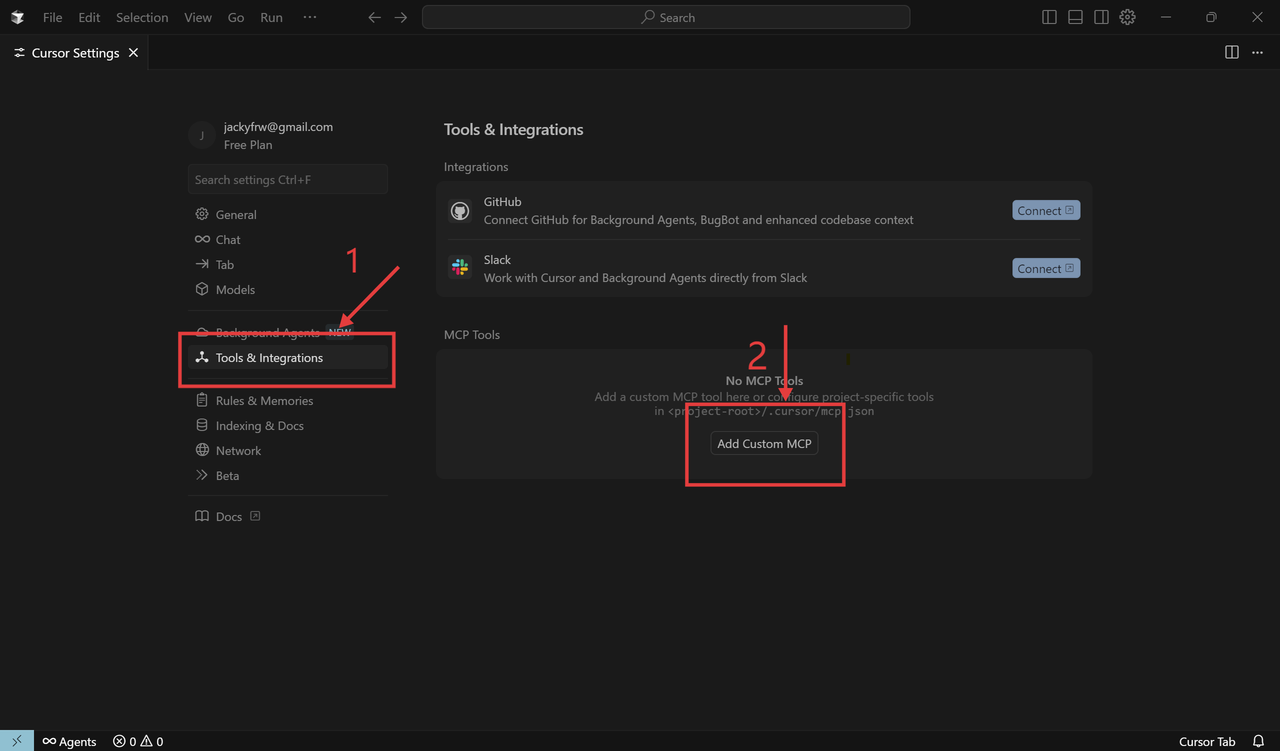
In the pop-up JSON configuration page, enter the required JSON content for the MCP Servers (for detailed import instructions, please refer to DINO-X MCP Tutorial Part1: How to Connect to MCP Server). The configuration codes for the three MCP Servers are as follows:
(1) DINO-X MCP (Remote call)
Official URL:https://github.com/IDEA-Research/DINO-X-MCP/blob/main/README.md
    {
      "mcpServers": {
        "dinox-mcp": {
          "url": "https://mcp.deepdataspace.com/mcp?key=your-api-key"
        }
      }
    }
Replace your-api-key with the API Key from the DINO-X Platform.
(2) How to Cook MCP (Remote call)
Third-party URL:https://mcp.so/server/howtocook-mcp/worryzyy?tab=tools
    {
      "mcpServers": {
        "howtocook-mcp": {
          "command": "npx",
          "args": [
            "-y",
            "howtocook-mcp"
          ]
        }
      }
    }
(3) Notion MCP
Official URL:https://developers.notion.com/docs/get-started-with-mcp
    {
      "mcpServers": {
        "Notion": {
          "url": "https://mcp.notion.com/mcp"
        }
      }
    }
The final JSON code for importing multiple MCP Servers looks like this:
    {
      "mcpServers": {
        "howtocook-mcp": {
          "command": "npx",
          "args": [
            "-y",
            "howtocook-mcp"
          ]
        },
         "dinox-mcp": {
              "url": "https://mcp.deepdataspace.com/mcp?key=your-api-key"
        },

          "Notion": {
              "url": "https://mcp.notion.com/mcp"
        }
      }
    }
Save and close the MCP JSON interface.

Return to the settings page and access the "Tools & Integrations" interface. You will see that the MCP Servers have been imported successfully. Additionally, the Notion MCP will prompt you to log in for authorization. Follow the instructions to log in to Notion and complete the authorization process.

Once the Notion MCP login and authorization are completed, it will display a green sign.

Finally, this diet planning product demo based on the DINO-X model is now set up! Next, let’s perform a simple application test (press Ctrl + L to open the dialog box).
2.Diet Planning Test
Suppose Bob has a mild cold recently with a sore throat. When he opens the refrigerator, he finds only these ingredients left at home:

He then provides a photo of the ingredients to the diet planning workflow and inputs:
I've had a mild cold lately and my throat is really sore. Could you please detect the ingredients in file://xxx (your image file path) , then recommand a 2-day meal plan for one person, and finally share the plan to Notion?
Upon receiving the instruction, Cursor's LLM (in "Auto" mode here) will start analyzing and decide which MCPs to call:
(1) First, it calls DINO-X MCP to analyze which ingredients are in the image.

(2) Then it calls How to Cook MCP to plan the meals.

(3) After that, it shares the meal plan to Bob's personal Notion space.

Finally, the LLM generates a complete output:
(1) Ingredients detected

(2) Nutritional meal plan
Before generating a customized meal plan, the LLM thoughtfully takes various design factors into account, such as sore throat-friendly foods and minimal additional purchases.
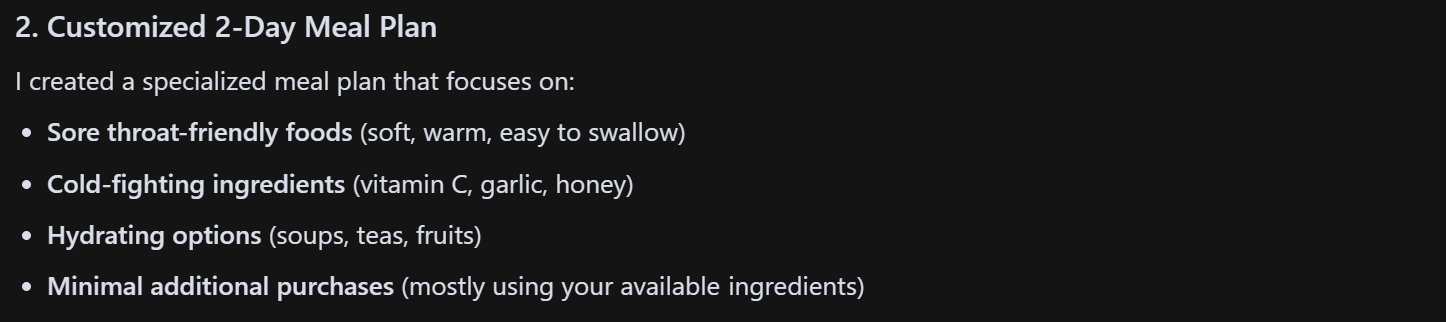
Then provides a day-by-day breakdown:

It also references the meal plan to remind users of necessary supplementary ingredients and other considerations, with all their details recorded in Notion space:

(3) Recording the meal plan to Notion
By calling Notion MCP, the model creates a dedicated page in the designated Notion space to record the meal plan and related notes.

The final generated Notion page is as follows:

With this, the diet planning workflow based on DINO-X MCP is now complete!
We can leverage this workflow to test the feasibility of building a dedicated app via the DINO-X model API, and accordingly optimize both the user interaction flow and product workflow to deliver an enhanced MVP.
Reference Resources
1.Install the npx dependency environment: https://nodejs.org/
2.Apply for a DINO-X API Key: https://cloud.deepdataspace.com/
3.DINO-X MCP Github: https://github.com/IDEA-Research/DINO-X-MCP/blob/main/README.md
4.Third-party URL for How to Cook MCP: https://mcp.so/server/howtocook-mcp/worryzyy?tab=tools
5.Official URL for Notion MCP: https://developers.notion.com/docs/get-started-with-mcp
6.Official URL for Cursor: https://www.cursor.com/